
Quickstart
Install Curviate, connect a LinkedIn account and make a first call. Five minutes, no code.
1. Install
Paste this into your agent. It reads the file and sets everything up:
Set up https://curviate.com/INSTALL.mdOr do it yourself:
Install the CLI from npm (Node.js 18 or later), then sign in with the API key from your dashboard. The prompt masks the key.
npm install -g @curviate/cli
curviate login
Want your agent to know every command? Add the Curviate plugin.
Add a custom connector and paste this URL, then sign in and approve once. There is no API key to copy.
https://app.curviate.com/mcpClaude: Settings, Connectors, Add custom connector. ChatGPT: Developer mode, Plugins, New connector.
Claude Code in one command:
claude mcp add --transport http curviate https://app.curviate.com/mcpIn Claude Code, the Curviate plugin adds skills on top. Other clients: Connect a client.
2. Make a first call
Ask your agent:
List my connected Curviate accounts, then show my own LinkedIn profile.From a terminal, the same reads are:
curviate account list
curviate config set-account acc_YOUR_ACCOUNT_ID
curviate core profile me
Both are reads: they take no LinkedIn action. An account with status active is ready. No account yet? Connect one first (below).
3. Next steps
API key
Your API key is ready as soon as you sign up. Copy it under Integrations › API in the dashboard (app.curviate.com/integrations/api). A key is one of two kinds. A Team key (cvt_live_...) works in one Team. An All-Teams key (cvt_all_...) works in every Team you are a member of, now and later, with your role in each. Either kind is yours alone and never expires until you rotate it. It works for the REST API, the CLI and the MCP server. Keep it in CURVIATE_API_KEY, never in client-side code. Rotate it, or delete a Team key, from the same page.
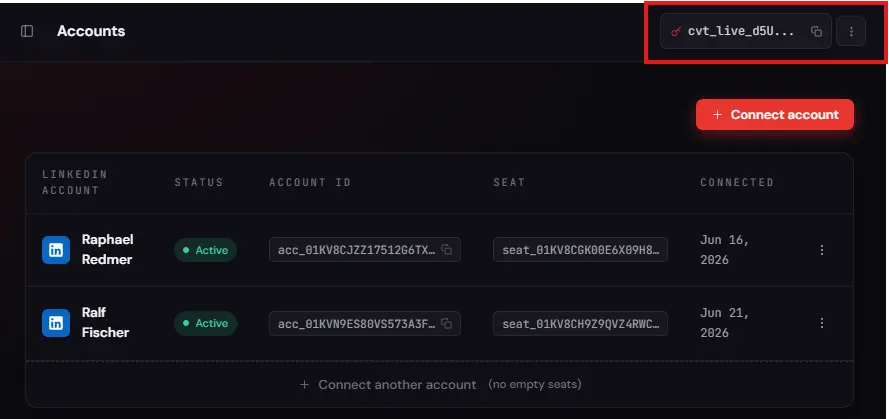
REST calls send it as a Bearer token:
curl https://api.curviate.com/v1/accounts \
  -H "Authorization: Bearer $CURVIATE_API_KEY"
With a Team key, that is all: every call acts in the key's Team. With an All-Teams key, every call acts in one Team, so name it. In the CLI, --team TEAM_ID on a command names it for that command, CURVIATE_TEAM for one shell, and the profile's Team is the default. Over REST, send the X-Curviate-Team header. Calls on an Account (/v1/{account_id}/...) take the Team from the Account, so they need no header. Without a Team, a call that needs one answers 400 TEAM_REQUIRED, even if you are in only one Team. GET /v1/teams lists your Teams and needs none.
curl https://api.curviate.com/v1/teams \
  -H "Authorization: Bearer $CURVIATE_API_KEY"

curl https://api.curviate.com/v1/contacts \
  -H "Authorization: Bearer $CURVIATE_API_KEY" \
  -H "X-Curviate-Team: tnt_YOUR_TEAM_ID"
Connect a LinkedIn account
In the dashboard, open Accounts and click Connect account. Choose Connect with cookies (recommended) and paste your LinkedIn session, or Email and password; Curviate uses them to connect the Account and never logs them. It does not store them, unless you turn on Keep connected, which saves your login encrypted in the EU until you turn it off. The account then shows as active with its acc_... id, which every account-scoped call takes.
Connecting accounts from your own product instead? Use POST /v1/auth/intent with a free seat's seat_... id, listed by GET /v1/accounts/seats (curviate account seats). Custom authentication walks through it.