Authentication & Accounts
This article walks through the two things you need before your first API call: obtaining your Curviate API key and connecting a LinkedIn account.
Step 1: obtain your API key
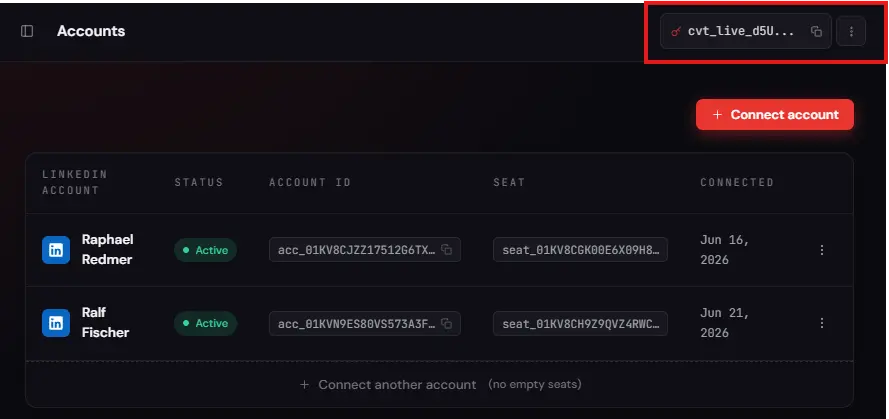
Your Curviate workspace API key is ready as soon as you sign up. It lives in the key chip at the top-right of the dashboard top bar. The chip shows the key prefix (for example cvt_live_...); click the copy icon on the chip to copy the full key to your clipboard. The key is a tenant-scoped secret that works across the REST API, the CLI, and the MCP server. MCP clients that support OAuth can sign in instead and need no key; see MCP authentication. If you have revoked your key, the chip shows a Generate API key control to mint a replacement; that full key is revealed once, so copy it right away.
Step 2: understand the key format and keep it safe
| Property | Value |
|---|---|
| Format | cvt_live_ plus a 33-character suffix |
| Scope | Tenant: all accounts and resources |
| TTL | Non-expiring until rotated |
| Rotation | Key chip, ⋮ menu, Refresh token |
| Storage | Server-side environment variable only |
There is only one key format. cvt_live_ is used in every environment, including staging; there is no separate test-key prefix. A token beginning cvt_test_ is not recognised as an API key at all and returns 401 UNAUTHORIZED with the message Invalid or expired session token., which is confusing but simply means "this is not a key".
Security
- Store the key in an environment variable (
CURVIATE_API_KEY). Never put it in client-side code or version control. - Rotate immediately on suspected exposure via the key chip's ⋮ menu, Refresh token (the replacement is shown once). To disable a key entirely, use ⋮, then Revoke key.
Step 3: connect a LinkedIn account
Before your API calls can act on LinkedIn, you need to connect a LinkedIn account in the Curviate dashboard.
- In the dashboard, navigate to Accounts (
/accounts). - Click Connect account. If you have no seats, the modal prompts you to purchase a seat first.
- The connect modal offers two authentication methods:
- Credentials (recommended): enter your LinkedIn email and password. Credentials are encrypted at rest and never logged.
- Cookie: paste the
li_atvalue from your browser's LinkedIn cookies. The modal includes an inline "How to find my cookies?" guide.
- Select your preferred method, fill in the form, and click Connect.
- If LinkedIn issues a verification challenge, the dashboard walks you through it: entering a one-time code (from email, SMS, an authenticator app, or WhatsApp), choosing between a code and an in-app approval, approving the sign-in in the LinkedIn mobile app, or picking a Recruiter or Sales Navigator seat. A mobile-app approval is time-limited (a few minutes); if it expires before you approve, the dashboard explains how to retry.
- If that LinkedIn identity is already connected to your tenant, the dashboard offers to reconnect the existing account rather than creating a duplicate. One LinkedIn account maps to one connection per tenant.
- On success, your account appears in the Accounts list with status
activeand a copy-ableacc_...account ID.
Account ID. The
account_id(formatacc_...) identifies your connected LinkedIn account in every API call, CLI command, and SDK method. Copy it from the Accounts table, or read it fromGET /v1/accounts, at any time.
Seat ID. The
seat_id(formatseat_...) identifies one seat in your subscription. You only need it when you connect an account from the API or the CLI; the dashboard picks the seat for you. Every seat you own is listed with click-to-copy in the seat table on the Billing page (/billing), and any seat whose Attached account column reads Empty is free to connect into. From the API,GET /v1/accounts/seatslists the same seats; any item withoccupied: falseis free.
Connecting accounts programmatically
You can connect accounts from the API instead of the dashboard, for example to onboard your own customers. POST /v1/auth/intent is the single connect path: you supply the LinkedIn credentials or cookie, and the same endpoint handles both a brand-new connection and re-authenticating an existing one in place. LinkedIn often responds with a verification challenge, so the flow can take more than one call.
First, get your seat ID
A new connect binds the account to an empty seat, so seat_id is required. Seat IDs live in the dashboard: open Billing (/billing) and look at the seat table. Every seat you own is listed there under Seat ID as a seat_... chip; click a chip to copy that seat's full ID to your clipboard.
Pick a seat whose Attached account column reads Empty. That is the seat to connect into. A seat that already names an account is taken, and connecting a new account into it is not possible while that account holds it.
If no seat reads Empty, use Add Seats on the same page before you connect. A connect with no empty seat available returns 402 PAYMENT_REQUIRED.
Then run the connect
The credential fields are nested objects, not top-level keys. A body with email, password, or li_at at the top level is rejected:
400 INVALID_REQUEST
credentials required when auth_method=credentials; cookie.li_at required when auth_method=cookie# Credentials
curl -X POST https://api.curviate.com/v1/auth/intent \
-H "Authorization: Bearer cvt_live_YOUR_API_KEY" \
-H "Content-Type: application/json" \
-d '{
"seat_id": "seat_YOUR_SEAT_ID",
"auth_method": "credentials",
"credentials": { "email": "you@example.com", "password": "YOUR_PASSWORD" }
}'# Cookie. user_agent is top-level and required for this method.
curl -X POST https://api.curviate.com/v1/auth/intent \
-H "Authorization: Bearer cvt_live_YOUR_API_KEY" \
-H "Content-Type: application/json" \
-d '{
"seat_id": "seat_YOUR_SEAT_ID",
"auth_method": "cookie",
"cookie": { "li_at": "YOUR_LI_AT_COOKIE" },
"user_agent": "Mozilla/5.0 (Macintosh; Intel Mac OS X 10_15_7) AppleWebKit/537.36 (KHTML, like Gecko) Chrome/120.0.0.0 Safari/537.36"
}'To reconnect an existing account instead, add "account_id": "acc_..." to the same body. seat_id is then ignored, because the account keeps the seat it already holds.
The flow in full:
-
POST /v1/auth/intentwith eitherauth_method: "credentials"(acredentialsobject holdingemailandpassword) orauth_method: "cookie"(acookieobject holdingli_at). Cookie auth also requires a top-leveluser_agent, the exact browser User-Agent the cookie was captured with. Omitaccount_idto connect a new account into the givenseat_id; includeaccount_idto re-authenticate an existing account in place. -
A
201(new) or200(reconnect) means the account connected immediately. A202means a challenge is required, and the body carries anaccount_id, achallenge_type, and anexpires_at:{ "object": "checkpoint", "status": "checkpoint_required", "account_id": "acc_...", "challenge_type": "two_factor_app", "expires_at": "2026-06-08T10:10:00Z" } -
Resolve the challenge on the same account. For a code-based challenge, submit the code to
POST /v1/auth/checkpoint/solvewith{ "account_id": "acc_...", "code": "123456" }; re-request the notification withPOST /v1/auth/checkpoint/request(same body shape) if the user never received it. For amobile_app_approvalchallenge, the user approves the sign-in in the LinkedIn app, so pollPOST /v1/auth/checkpoint/pollwith{ "account_id": "acc_..." }until it returns the connected account, or untilexpires_atpasses and it reportsstatus: "expired". You can also read the connect's current status at any time withGET /v1/auth/sessions/{session_id}, passing the connect'saccount_id(theacc_...id) assession_id. -
A resolved challenge returns the connected account. If it turns out to reactivate an account you had previously disconnected, that account is returned with
"recovered": trueand keeps its originalaccount_id.
If the identity is already connected, the new-connect branch returns 409 ACCOUNT_ALREADY_LINKED. Pass that identity's account_id in the body on a follow-up POST /v1/auth/intent to re-authenticate it in place instead of creating a duplicate. When your tenant already owns that account, the error names your own account_id so you can reconnect it directly.
Every step above has a CLI equivalent under curviate account; see the CLI account reference.
Errors you may hit
| Code | HTTP | Cause | Fix |
|---|---|---|---|
INVALID_REQUEST | 400 | email, password, or li_at sent at the top level instead of inside credentials / cookie; or user_agent missing on a cookie connect. | Nest them as shown above. |
UNAUTHORIZED | 401 | Missing or invalid API key. A cvt_test_ prefix lands here. | Use your cvt_live_ key. |
SEAT_NOT_FOUND | 404 | The seat_id does not exist or is not yours. | Copy it from the seat table on the dashboard's Billing page. |
PAYMENT_REQUIRED | 402 | No empty seat available. | Use Add Seats on the dashboard's Billing page. |
ACCOUNT_ALREADY_LINKED | 409 | That LinkedIn identity is already connected. | Reconnect it by passing its account_id. |
LINKEDIN_AUTH_FAILED | 401 | LinkedIn rejected the credentials. | Check the email and password. |
LINKEDIN_COOKIE_INVALID | 401 | The li_at cookie is expired or was captured under a different User-Agent. | Re-export it, and send the matching user_agent. |
CHECKPOINT_INVALID_CODE | 422 | Wrong verification code. | Re-read the code, or re-request the notification. |
Full envelope shapes are in the error reference.
Next steps
- API quick start: your first authenticated call.
- Getting started guides: send a message, read a profile, list connections.
- CLI accounts: the same flow from the terminal.
- Errors: the full error-code reference.